Vprobe Advanced Setup & Troubleshooting Guide
Use this guide when you need detailed help with Vprobe setup, Wi-Fi connection, app screens, thresholds, notifications, Magic Touch, update rates, battery life, graphs, fertility / EC readings and advanced troubleshooting.
- Fix common setup and Wi-Fi connection problems
- Understand N710 offline messages and weak Wi-Fi warnings
- Learn how thresholds, notifications, reports and graphs work
- Understand fertility / EC readings and why they can change after watering
- Use Magic Touch, update rate settings and firmware update requests correctly
For most users, the simple How It Works guide is enough. This page is for deeper setup and support cases. For a full explanation of fertility / EC readings, see our Plant Fertility & EC Explained guide.
Jump to the section you need
This page is designed for support and troubleshooting. Use the links below to find the exact topic.
Start here if something is not working
These checks solve many setup, connection and reading issues before deeper troubleshooting is needed.
Check 2.4 GHz Wi-Fi
Vprobe connects to 2.4 GHz Wi-Fi. It will not connect to a 5 GHz-only network.
Check Wi-Fi password
Passwords are case-sensitive. Check uppercase letters, numbers and symbols before trying again.
Move closer to router
Weak Wi-Fi can cause N710 offline errors and reduce battery life. Test near the router first.
Keep Vprobe top clear
Leaves and branches near the top can reduce antenna and light sensor performance.
Check batteries
If the battery indicator is red, replace both AAA batteries with good-quality cells.
Check fertility after watering
For the most useful EC fertility reading, check the plant around 1–3 hours after watering or feeding.
Install Vplants and create your account
The Vplants app is required to add plants, link Vprobe, store plant data securely and view readings, alerts, thresholds, graphs and reports.
- Install Vplants from Google Play or the Apple App Store
- Create an account using Google/Facebook sign-in or native email registration
- Verify your email if using a native account
- Use the same account email when contacting support about firmware or cloud data

Detailed setup sequence
Follow the Add New Plant steps in the app. The sequence links one Vprobe to one plant profile.
Insert Vprobe into the soil
Choose the plant you want to monitor, then insert Vprobe into the soil before continuing with the app setup. Correct placement is important for soil moisture, fertility / EC, Wi-Fi, antenna and light readings.
- Insert the 3-level soil sensor fully into the soil.
- For best readings, all soil sensing levels should be surrounded by soil with no air gaps.
- Place Vprobe at least 1 inch away from the pot wall where possible.
- Do not install the sensor in hard soil or soil covered with stones or sharp objects.
- Keep the top of Vprobe clear from leaves and branches to improve antenna and light sensor performance.
- Allow around 10 mm clear space around the top of Vprobe where possible.
- Rotate Vprobe so the light sensor points toward the brightest light source in the room.
- For fertility / EC readings, avoid placing the probe in large air gaps, stones or very loose bark pockets where possible.


Take a plant photo
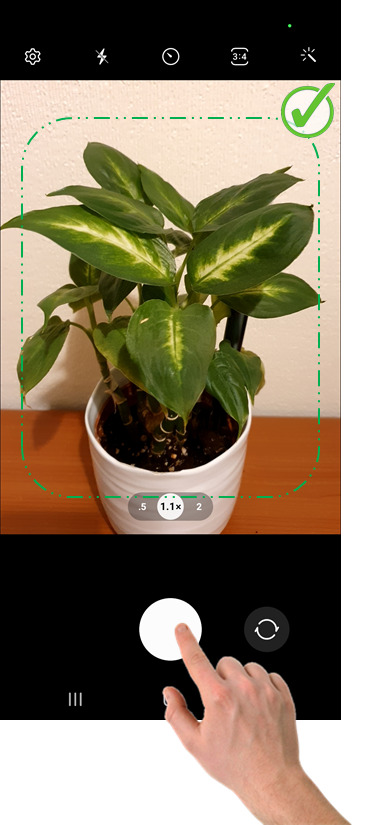
The app can use plant identification to identify your plant and retrieve suitable care thresholds. A good photo improves identification accuracy.
- Use a clear, sharp photo with no filters.
- Capture one plant, not several plants together.
- Use good ambient light.
- For small plants, fit the whole plant on screen.
- For larger plants, take a close-up showing around one third of the plant.
Enter home Wi-Fi details
Enter the 2.4 GHz Wi-Fi network name and password that Vprobe should use. These details are sent to Vprobe during the final linking step.
- Use the router closest to the plant if you have more than one.
- Vprobe needs internet access for cloud data, time synchronisation and OTA firmware updates.
- Magic Touch can work locally without internet, but normal cloud readings require internet.
- Saved Wi-Fi details can be reused during future setup flows.
Link Vprobe with the plant
The final step transfers setup data to Vprobe using secure Wi-Fi direct communication.
- Touch the top of Vprobe and hold for about 5 seconds until the LED goes green.
- Remove your fingers from Vprobe. Do not keep touching the sensor.
- Tap the Connect button in the app.
- Allow the app to complete the linking process.
The setup can finish even if the Wi-Fi password is wrong or the router is offline. If details are wrong, Vprobe may later flash red or show offline because it cannot reach the internet.


What happens after the plant photo
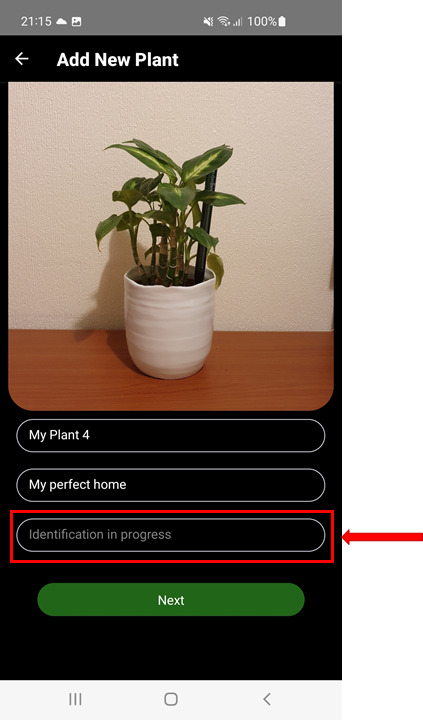
Vplants can submit plant photos for identification. In many cases the plant is identified from the first photo, but sometimes more photos may be needed or the app may show identification in progress.
- If identification succeeds, Vplants uses the plant name to load suitable thresholds and care information.
- If identification is still in progress, continue setup and allow time for the plant profile to be completed.
- You can give your plant a memorable name and set its location, such as kitchen, hallway, conservatory or living room.
- You can later rename the plant from the Plant Overview screen.
What “N710: Vprobe is OFFLINE” means
N710 means the app did not receive initial cloud data from Vprobe after setup. This usually happens because Wi-Fi details are wrong, the network is not 2.4 GHz, internet access is unavailable, security settings are incompatible, or the Wi-Fi signal is too weak.
Check the LED first
Touch the top of Vprobe for about 1 second and check the LED. If the LED flashes red, Vprobe is not able to connect to the internet using the current Wi-Fi details or network conditions.
How to fix N710
- Make sure the top of Vprobe is not covered by leaves or branches.
- Update Wi-Fi SSID and password using Wi-Fi Settings in the plant menu.
- Confirm the network is 2.4 GHz, not 5 GHz-only.
- Use WPA2 security or mixed WPA2/WPA3 where supported.
- Move Vprobe closer to your router and test again.
- Consider a Wi-Fi extender if your home has dead zones.
Advanced Wi-Fi guidance
Vprobe relies on a stable 2.4 GHz Wi-Fi connection. Signal strength and router settings can affect connection reliability and battery life.
Not sure why Vprobe uses Wi-Fi instead of Bluetooth? Read our simple comparison: WiFi Plant Sensor vs Bluetooth Plant Sensor →
2.4 GHz only
Vprobe Model 1 is designed for 2.4 GHz Wi-Fi. If your router separates 2.4 GHz and 5 GHz names, connect Vprobe to 2.4 GHz.
Channel choice
If the signal is weak or the area is crowded, manually set the 2.4 GHz channel to 6, 7, 8 or 9 where possible.
Battery and signal
Strong Wi-Fi helps battery life. Vprobe reduces transmitter power when router signal is strong.
Weak Wi-Fi indicator
The weak Wi-Fi indicator is normally hidden and appears when the Wi-Fi signal is too weak for reliable communication. If it appears, check Vprobe placement, router distance and Wi-Fi channel.
- Keep at least around 10 mm clear space around the Vprobe top where possible.
- Keep leaves and branches away from the antenna/light sensor area.
- Try a less crowded 2.4 GHz channel.
- Move the plant closer to the router or add a Wi-Fi booster/repeater/extender.


WPA, WPA2 and WPA3 security
Vprobe Model 1 may not support WPA3-only router settings from the factory. If your router is configured as WPA3-Personal only without WPA2 fallback, Vprobe may fail to connect and the LED may flash red.
- Recommended security: WPA2-AES.
- Mixed WPA2/WPA3 mode may work where supported by the router and firmware.
- If WPA3-only is required, contact support about OTA firmware options.
- For the firmware update to be received, the device may first need temporary WPA2 access.

Understanding the home screen
The My Plants screen gives a quick overview of all plants in your account. It can manage up to 50 plants per account.

What each plant card shows
- Plant photo
- Plant health bar
- Plant name, common name and location
- Weak Wi-Fi indicator when needed
- Battery replacement indicator when needed
Main menu
The main menu is used to access support, edit/delete account, reset password, review documentation and log out.
Delete account
Account deletion permanently removes your app and cloud data and cannot be reversed. Use it only if you are sure you no longer need your account or stored plant data.
Green health bar
The plant is within good conditions. No immediate action is required.
Orange health bar
The plant may need attention soon. Conditions are not ideal but may not yet be critical.
Red health bar
Urgent care is needed. Open Plant Overview to see the task or health message.
Your main plant control screen
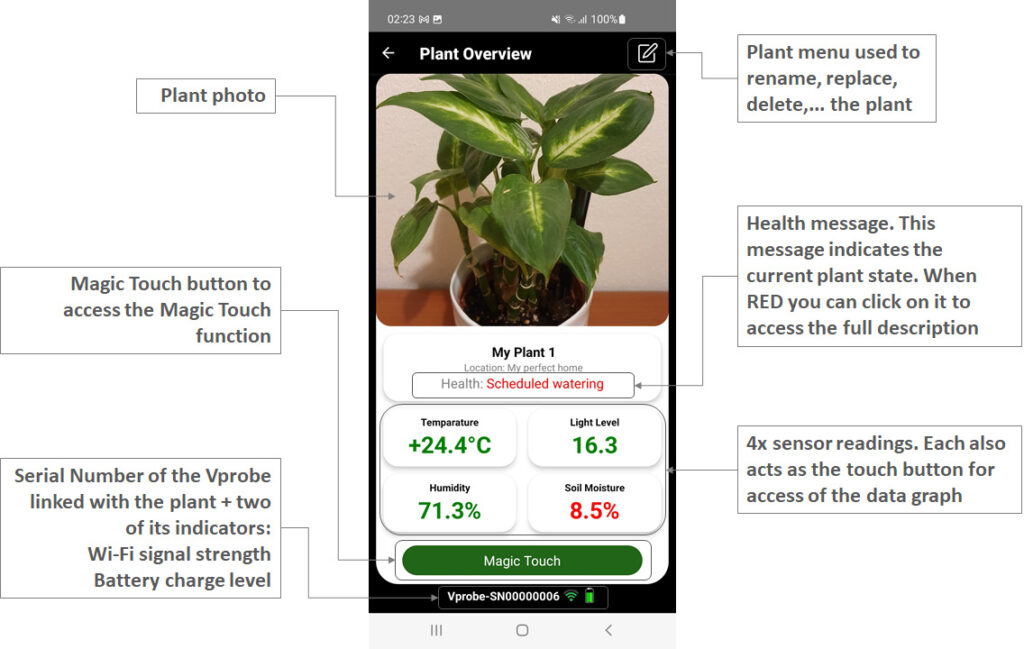
Plant Overview shows the selected plant photo, plant menu, health message, sensor readings, Magic Touch button, Vprobe serial number, Wi-Fi indicator and battery indicator.
- Click the health message or info icon for more detail.
- Click sensor readings to open graphs.
- Use Magic Touch for live local readings.
- Use the plant menu to rename, delete, replace or adjust settings.
- For fertility / EC questions, use the dedicated Plant Fertility & EC Explained guide.
About this Plant
Shows plant-specific details such as generic name, group, grown size, toxicity and other descriptive information.
Rename this Plant
Change the plant name and location. Use a name that makes sense in notifications, especially if you own several plants.
Delete this Plant
Deletes the plant and its data. Only use this if you are sure you no longer need the plant record.
Replace this Plant
Reuse the same Vprobe with a new plant without repeating the full setup. Check the serial number if you own multiple Vprobes.
Wi-Fi settings
Update Wi-Fi SSID and password if router settings change or if the original details were wrong.
Reports
Open historical plant health reports and recommended actions produced by the app.
Fertility / EC help
Learn why fertility readings can rise after feeding, drop as soil dries, or become unreliable in bark and chunky mixes. Read the full fertility guide.
Understanding Vprobe fertility readings
Vprobe measures fertility using EC, which stands for electrical conductivity. EC gives a useful indication of dissolved mineral strength in the moisture around the roots.
Why fertility readings change
Fertility is not a fixed number. Watering, feeding, drainage, soil moisture, soil type and sensor contact can all change the EC reading. A low reading does not always mean the plant has used all nutrients.
- Wet soil usually gives a more meaningful EC reading.
- Dry soil can reduce sensor contact and make fertility appear low.
- Watering can dilute or wash nutrients through the pot.
- Chunky mixes, bark and cactus soil can make readings less stable.
- Tap water and fertiliser strength can both affect EC.
Best time to check fertility
For the most useful reading, check fertility around 1–3 hours after watering or feeding. This gives the growing medium time to become moist around the sensor and matches Vprobe’s hourly measurement rhythm.
For orchids, bark mixes, cactus soil and chunky aroid mixes, fertility readings are often most useful after watering, while the sensor has good contact with moisture.
Normal compost
Fertility readings are usually more stable in evenly moist houseplant compost, coir mixes and peat-free compost.
Orchid bark and chunky mixes
Readings can drop quickly because bark has air gaps, drains quickly and dries unevenly. This does not always mean there are no nutrients left.
Very dry soil
If the soil is too dry, the fertility reading may be low or unreliable because there is not enough moisture around the sensor.
How Vplants decides when to alert you
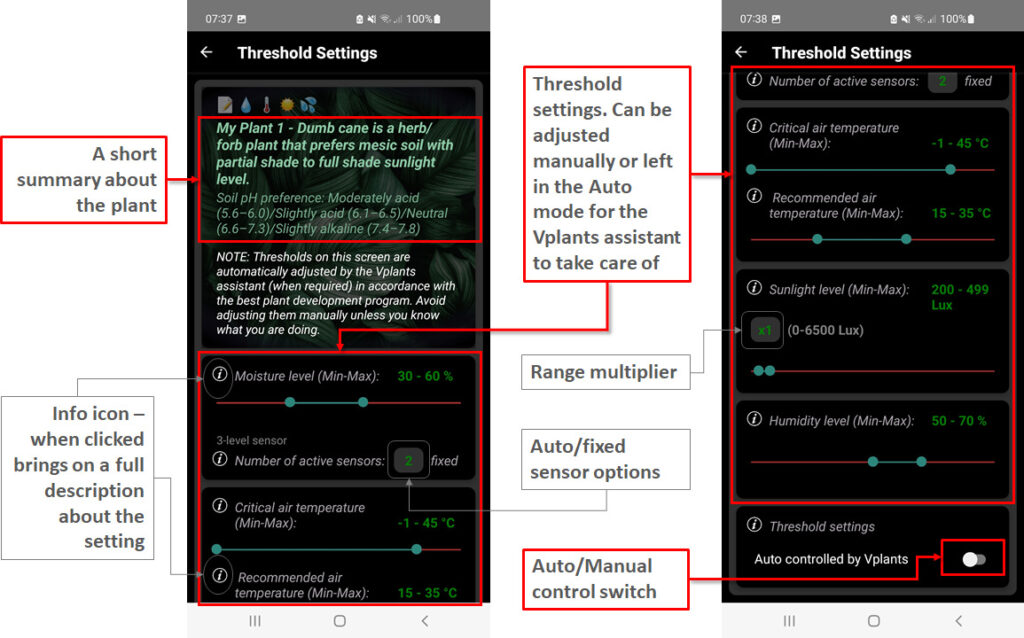
Thresholds tell the app when sensor readings are good, warning-level or urgent. They affect health bars, health messages and notifications.
Auto mode
By default, Vplants can use Auto mode. This allows the assistant to manage threshold settings for the plant and adjust care guidance over time.
Manual mode
Manual mode unlocks threshold settings so you can adjust them yourself. In manual mode, you are responsible for choosing sensible values and adjusting them as the season or plant conditions change.
Info icons
Info icons next to settings explain what each threshold does. Use them before changing values.
Fertility thresholds should be interpreted carefully because EC readings depend strongly on moisture, soil type and watering timing. For a detailed explanation, read the Plant Fertility & EC Explained guide.
Green messages
Plant health is good. No care is required at that time.
Orange messages
Warning or advisory message. The plant may benefit from attention soon.
Red messages
Important task pending. Open the message for the full explanation and action.
How Vplants notifications work
Vplants can send phone notifications when your plant needs attention. These alerts are designed to help you act before the plant problem becomes more visible.
Plant-care alerts on your phone
Notifications can include watering reminders, low-light warnings, humidity warnings, temperature warnings and other plant-health messages depending on your readings and threshold settings.
When a notification appears, it shows the plant name and the care issue. Opening the notification takes you back to the app so you can view the full Plant Overview screen.
- Notifications are linked to each plant profile
- The message shows the plant name and the care issue
- Expanded notifications can show more detailed care instructions
- The same issue is shown inside Plant Overview as a health message
- You can adjust notification settings and threshold behaviour in the app

Notification timing
A practical notification time is usually in the morning, so you can water, move or check your plant during the day. The default notification time for newly added plants is usually 10:30 am, but each plant can have its own notification time.
When notifications may not appear
If you do not receive notifications, check phone notification permissions, battery optimisation settings, app permissions, plant thresholds and whether Vprobe is online and sending data.
Example notification flow
In the example image, Vplants sends a notification because “My Plant 2” requires attention. The expanded notification shows more detail, including watering guidance and a light warning.
When the user opens the app, the same issue appears in Plant Overview as the health message. This confirms that the phone alert and app message are connected.
Understanding when readings update
Vprobe is battery-powered, so it does not stay connected continuously. It stores and sends readings on a schedule, with options for more frequent updates.
Typical data exchange
Vprobe samples data regularly and sends data to the cloud on a schedule. After initial setup, readings may be sent more frequently at first, then typically every 6 hours by default.
The device can store data if Wi-Fi or internet is temporarily unavailable and send it once the connection is restored.
Force readings update
Touch the top of Vprobe for about 1 second to force an update. This can flush stored readings to the app and is useful before completing a task or checking graphs.
Data Update Rate
Newer firmware can allow update-rate adjustment. More frequent updates are useful for advanced users, smart-home integrations and closer monitoring, but they reduce battery life.
- Every 1 hour: up to 2 months
- Every 3 hours: around 3–4 months
- Every 6 hours: around 6–10 months
- Every 12 hours: around 10–16 months
- Every 24 hours: 16 months or more
Estimates assume good Wi-Fi signal strength. Weak Wi-Fi can reduce battery life. If you are checking fertility / EC after watering, a 1-hour update rate makes it easier to see readings within the recommended 1–3 hour window.


Magic Touch mode
Magic Touch creates a quick local connection with Vprobe so you can view live sensor data. It is useful for testing soil moisture or checking local environmental conditions.
- Magic Touch can show live data with around 1-second updates.
- Do not keep Magic Touch active for too long because it drains the battery faster.
- Sessions are limited to help save battery.
- Scan OFF uses the linked Vprobe serial number/SSID.
- Scan ON scans for Vprobes in range and connects to the first found.
- Android scan limits may apply on newer Android versions.
Understanding the bottom indicators
At the bottom of Plant Overview you can see the serial number of the Vprobe linked with that plant, plus Wi-Fi and battery status indicators.
Wi-Fi indicator
More green bars indicate a stronger connection. If the indicator shows only one red bar, improve Wi-Fi coverage or check Vprobe placement.
Battery indicator
The battery indicator changes colour based on charge. If it turns red, replace both AAA batteries.
- Minimum recommended battery capacity: 1000 mAh
- Use good-quality AAA batteries
- Replace both batteries together
- Better Wi-Fi signal can improve battery life

How to read Vplants graphs
Graphs help you understand how conditions change over time, including temperature, light level, humidity, soil moisture and fertility / EC.

Graph basics
- Each graph can contain up to 24 readings per day.
- The date picker selects which day to view.
- The Y-axis shows sensor values such as °C, lux, percentage or EC values.
- Temperature, light and humidity graphs rescale to fit that day’s values.
- Soil moisture starts from 0% for easier comparison.
- Fertility / EC graphs should be interpreted together with soil moisture and watering history.
- The X-axis shows the hour when each reading was taken.
Opening and hiding graphs
Click a sensor reading on the Plant Overview screen to open graphs. You can open or hide graph sections using the graph names where supported.
If fertility readings look confusing, especially after watering or with orchids, bark, cactus soil or chunky mixes, read the Plant Fertility & EC Explained guide.
Reports and advanced data use
Reports provide a historical health overview for a selected plant and may summarise recommended actions based on recent data.
- Reports are generated automatically after evaluation cycles.
- Actions in a report apply to the period covered by that report.
- Old reports may become less accurate if the plant conditions have changed.
- Some plant issues may require several days of data before the assistant can recommend an action.
- Fertility / EC recommendations should be considered together with soil moisture, plant type and soil type.
Data export for business users
Vortex Vitality can discuss data export or larger deployments for greenhouses, agriculture and business users, subject to stock, availability and agreed terms.
Data is predominantly collected in AWS Cloud and may be transferred or integrated by agreement where suitable.
OTA firmware update requests
Firmware updates may be required for some advanced features or router compatibility cases.
When to request an update
- You need WPA3 support and cannot use WPA2 long term.
- You need update-rate adjustment and your firmware is older than v2.2.0.
- Support has advised you to request a firmware update.
Information needed
- Your name
- Your Vplants account email from the Profile screen
- Product serial number, for example Vprobe-SN00000123
- List all serial numbers separated by commas if requesting updates for several Vprobes
Firmware update request form
Use the form below to request an OTA firmware update. Please include your Vplants account email and all Vprobe serial numbers that require the update.
How to reuse Vprobe with another plant
Replace this Plant allows you to reuse a Vprobe without repeating every setup step, but you must avoid mixing up sensors if you own more than one.
Select the plant being replaced
Open Vplants and go to the Plant Overview screen for the plant you want to replace.
Physically remove Vprobe
Go to the plant and pull Vprobe out of the old pot before starting replacement.
Use Replace this Plant
Open the plant menu while holding the same Vprobe and select Replace this Plant.
Insert Vprobe into the new pot
Place the sensor correctly in the new plant pot and take a new plant photo when the app asks.
What to send when contacting support
Good support information helps us solve the issue faster. Please include as much detail as possible.
Include these details
- Your Vplants account email
- Vprobe serial number
- Phone model and operating system
- App version if known
- Firmware version if known
- Screenshot of the error or screen
- Router model if Wi-Fi issue is involved
- For fertility questions, include when the plant was last watered or fed
Before contacting support
- Confirm 2.4 GHz Wi-Fi is enabled
- Check Wi-Fi password
- Move Vprobe near router and test LED
- Check battery condition
- Try Wi-Fi Settings update from plant menu
- Take screenshots of any error messages
- For fertility questions, check the reading 1–3 hours after watering
Monitor more plants with more sensors
One Vprobe monitors one plant pot. Add more sensors for your favourite, rare or most valuable plants.
Official store or Amazon • UK-based support • Wi-Fi connected • No extra hub required