How Vprobe works with the Vplants app
Vprobe sits in your plant pot, monitors the conditions around your plant, sends readings over Wi-Fi, and helps the Vplants app turn that data into simple plant-care guidance.
- See soil moisture, light, air temperature and humidity readings
- Understand when your plant may need water, better light or attention
- Connect over Wi-Fi — no Bluetooth syncing and no extra hub required
- Use plant identification, custom thresholds, alerts and history graphs
Already setting up? Follow the steps below carefully. Need detailed troubleshooting? Open the Advanced Setup Guide.

The complete process in four simple steps
Vprobe is designed to make plant care easier. You insert the sensor, add your plant, connect to Wi-Fi, then use the app to follow readings and care alerts.
Insert Vprobe
Place Vprobe into the soil near your plant’s roots. One Vprobe monitors one plant pot.
Add your plant
Create a plant profile in the Vplants app. You can use plant identification or choose the plant manually.
Connect Wi-Fi
Connect Vprobe to a normal 2.4 GHz home Wi-Fi network so it can send readings to the cloud.
Follow guidance
Check live readings, alerts, thresholds and graphs to understand what your plant needs.

More than a basic moisture meter
Plant problems are rarely caused by one thing. Vprobe monitors the main conditions that affect indoor plant health, so the app can give clearer care guidance.
Soil moisture
Helps you understand whether the root zone is becoming too dry or staying too wet.
Light level
Shows whether your plant is getting enough light in its current position.
Air temperature
Helps identify rooms or windowsills that may be too cold or too warm.
Wi-Fi cloud monitoring
Sends readings to the Vplants app so you can check your plant remotely.
Humidity
Useful for tropical plants, calatheas, ferns, orchids and humidity-sensitive houseplants.
Smart alerts
Receive notifications when supported readings move outside your plant’s selected care thresholds.

Correct sensor placement matters
For best readings, insert the soil sensor section fully into the soil so the moisture sensing areas are surrounded by soil, not air gaps. Keep the top of Vprobe above the soil and clear from leaves where possible, so the antenna and light sensor can work correctly.
Before you start
To set up Vprobe, you need the Vplants app, your Vprobe sensor, your Wi-Fi name and password, and the plant pot you want to monitor.
- Vprobe smart plant sensor
- Vplants app installed on iOS or Android
- 2.4 GHz Wi-Fi network
- Wi-Fi password
- One plant pot with normal soil
- Vprobe does not use Bluetooth syncing
- Vprobe does not require an extra hub
- One Vprobe monitors one plant pot
- Keep the top of Vprobe above the soil
Wi-Fi requirement
Vprobe connects to 2.4 GHz Wi-Fi. It will not connect to a 5 GHz-only network. Many home routers use one combined Wi-Fi name, but if setup fails, check that 2.4 GHz Wi-Fi is enabled.
How to set up Vprobe in the Vplants app
Follow these steps in order. The exact screen names may vary slightly depending on your app version, but the process is the same.
Open the Vplants app
Download the Vplants app, create or sign in to your account, then open the plant list or add-plant screen.
Add a new plant
Tap the plus icon on the My Plants screen to start adding your first plant and Vprobe.
Insert Vprobe into the soil
Place Vprobe into the pot close to the root zone. The lower sensor area should be in the soil, while the top part should remain visible.
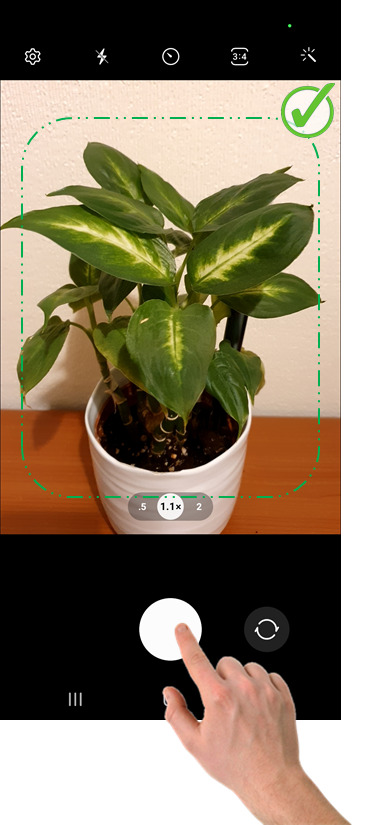
Take a plant photo
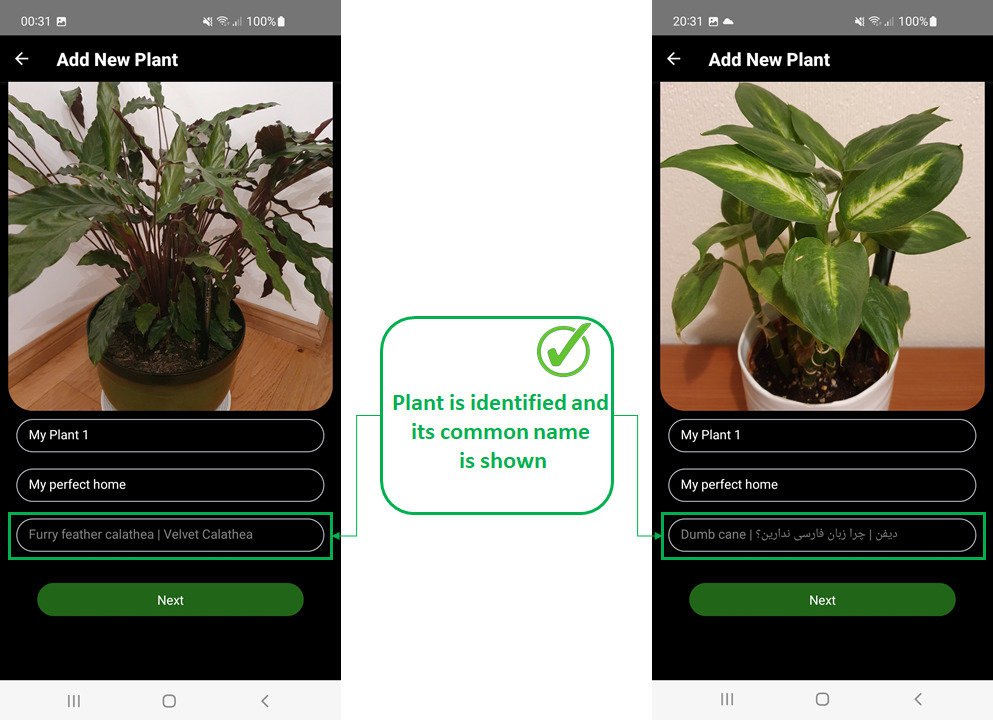
Take a clear photo of one plant. The app can use this photo to help identify your plant and apply suitable care guidance.
Enter your home Wi-Fi details
Enter your 2.4 GHz Wi-Fi name and password carefully. Vprobe uses these details to connect to the internet and send plant readings to the cloud.
Link Vprobe with the plant
Follow the app instructions to wake Vprobe, connect to it, transfer the setup details and finish linking the sensor to your plant profile.

What you can do inside Vplants
The Vplants app is where your sensor readings become useful. It helps you see the condition of each plant, understand trends, and receive alerts when a plant needs attention.
My Plants screen
See your plant collection at a glance and quickly identify which plants may need attention.
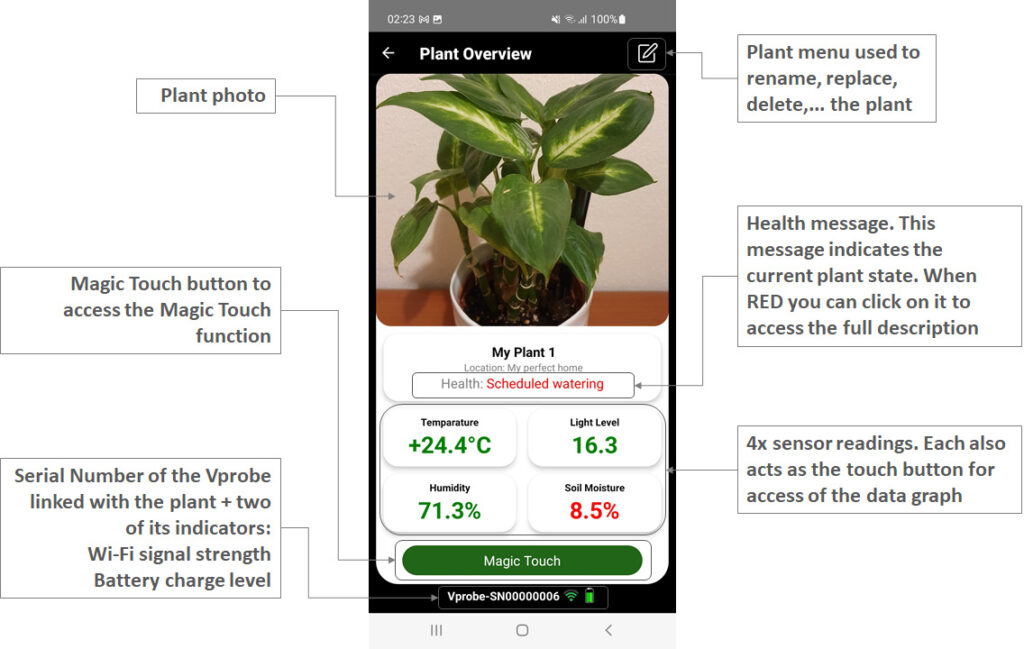
Plant overview
View live readings, plant status and key care information for each connected Vprobe.
Smart notifications
Receive app notifications when readings move outside the recommended or custom threshold range.
Custom thresholds
Adjust care thresholds for each plant so a cactus is not treated like a calathea.
Graphs and history
Track changes over time and see how watering, light, room temperature and humidity affect your plant.
Magic Touch update
Use the touch function on Vprobe to wake the sensor or request updated readings when supported by your device mode.

Add your plant and apply suitable care guidance
When adding a plant, use a clear photo with one plant in focus. The app can help identify the plant and apply suitable care guidance and thresholds.
- Use a clear photo of one plant, not a group of plants
- Make sure the leaves are visible and not too dark or blurry
- If identification is uncertain, choose the plant manually if available
- You can still use Vprobe readings even if you adjust the plant profile later

Best photo tip
Stand close enough for the leaves to be clear, but far enough that the app can see the plant shape. Avoid photos with several plants mixed together.

Before you connect Vprobe to Wi-Fi
Most setup problems are caused by Wi-Fi name, password, signal strength or router band settings. Check these points first.
Use 2.4 GHz Wi-Fi
Vprobe connects to 2.4 GHz Wi-Fi. If your router separates 2.4 GHz and 5 GHz networks, choose the 2.4 GHz network.
Check the password
Wi-Fi passwords are case-sensitive. Check capital letters, numbers and special characters before trying again.
Keep signal strong
Place the plant where Wi-Fi signal is reliable. Thick walls, distance and metal objects can weaken the connection.
Supported security
Vprobe supports common secured home Wi-Fi networks such as WPA, WPA2 and WPA3. Open networks and older WEP networks are not recommended.
If setup fails
Restart the setup process, move closer to the router, check the Wi-Fi details, and try again with a stable 2.4 GHz network.
Need help?
If you cannot get connected, contact Vortex Vitality support and we will guide you through the setup step by step.
Need detailed Wi-Fi troubleshooting?
For N710 offline messages, router-channel settings, WPA2/WPA3 details, weak Wi-Fi warnings, firmware update requests and advanced setup help, use the full Advanced Setup & Troubleshooting Guide.
How Vplants turns sensor data into useful guidance
Vprobe gives the app live environmental readings. Vplants compares those readings with your plant profile and thresholds to help you decide what to do next.
What the app may tell you
- Soil moisture may be low and watering may be needed
- Soil may still be wet, even if the surface looks dry
- Light may be too low in the current position
- Humidity may be too low for tropical plants
- Temperature may be outside the preferred range
Why thresholds matter
Different plants prefer different conditions. A cactus, orchid, calathea and monstera should not all be treated the same way. Custom thresholds help make Vplants more useful for each plant.
You can adjust thresholds in the app if you know your plant has specific needs or if your home environment is unusual.
If something does not look right
Use these quick checks before contacting support. Most issues can be solved by checking Wi-Fi, placement, app settings or sensor position.
Vprobe does not connect to Wi-Fi
Check that you are using 2.4 GHz Wi-Fi, the password is correct, and the plant is close enough to the router. Restart setup and try again.
The app says the device is offline
Move Vprobe closer to the router, check that your Wi-Fi is working, and allow time for the next reading update. Weak signal can cause offline warnings.
Readings look unusual after inserting Vprobe
Allow readings to stabilise after insertion. Make sure the sensor is correctly placed in the soil and not touching the side of the pot.
The plant photo is not identified correctly
Try another photo with one clear plant, good light and visible leaves. You can also select or adjust the plant profile manually where available.
I do not receive notifications
Check app notification permissions on your phone, make sure the plant has thresholds set, and confirm that Vprobe is online.
Still stuck?
The Advanced Setup & Troubleshooting Guide covers N710 offline errors, Wi-Fi router settings, weak signal warnings, Magic Touch, battery indicators, update rates, graphs and firmware update requests.
Need deeper setup or troubleshooting help?
This page is designed to keep the setup process simple. If you need detailed technical help, use the Advanced Setup & Troubleshooting Guide. It covers the topics that are useful for support cases and advanced users without making this page too complicated for beginners.
- N710 offline messages and weak Wi-Fi warnings
- Router channels, 2.4 GHz setup and WPA2/WPA3 details
- Magic Touch, update rates, battery life and forced updates
- Thresholds, notifications, reports, graphs and firmware update requests
When to use the advanced guide
Use it if setup fails, Vprobe shows offline, Wi-Fi signal is weak, notifications are not arriving, you need a firmware update, or you want to understand Magic Touch, graphs and update-rate settings in more detail.
We will help if you get stuck
Vprobe is designed for normal home use, but Wi-Fi networks and phone settings can vary. If you cannot complete setup, contact us and we will help you step by step.
Setup Support Promise
If you cannot get your Vprobe connected, contact Vortex Vitality support and we will guide you through the process.
Start with one plant you really care about
Add Vprobe to your favourite or most valuable plant first, then expand your setup as your indoor plant collection grows.
Official store or Amazon • UK-based support • Wi-Fi connected • No extra hub required
How It Works FAQ
Does Vprobe water my plant automatically?
No. Vprobe does not water the plant automatically. It monitors conditions and helps you understand when your plant may need attention.
Can I use one Vprobe for several plants?
One Vprobe monitors one plant pot. You can move it, but for reliable tracking each important plant should have its own Vprobe.
Does Vprobe need Bluetooth?
No. Vprobe uses Wi-Fi for cloud data. This allows remote monitoring without manual Bluetooth syncing.
Can I check my plant when I am away from home?
Yes. When Vprobe is connected to Wi-Fi and sending data, you can check your plant readings through the Vplants app.
How many plants can I manage in the Vplants app?
The Vplants app can manage up to 50 plants per account.
What Wi-Fi does Vprobe need?
Vprobe needs 2.4 GHz Wi-Fi and a secured network such as WPA, WPA2 or WPA3. It is not designed for 5 GHz-only networks.
Where can I find detailed troubleshooting help?
Use the Advanced Setup & Troubleshooting Guide for N710 offline errors, Wi-Fi router settings, weak signal warnings, firmware updates, Magic Touch, thresholds, notifications, graphs and battery help.